
Learn. Set Up. Succeed.
From calibration to feedback, these quick videos walk you through everything you need to know.
Introduction
Get started with an overview of what’s included and how to join.
SET UP & CALIBRATION
Step-by-step guidance to ensure accurate readings every time.
Set up Fitness focus
Adjust device settings for uninterrupted training sessions.
TROUBLESHOOTING
Quick solutions to keep your device running smoothly.
Submit feedback
Easily share your thoughts and help improve Pocket Radar.
ACCESSing THE WEB APP
Log in and explore the full features available online.
Contact Us
Find the fastest ways to reach our team when you need help.
5 STEPS FOR SUCCESS - EAP
✅ Step 1: Get Started with the Early Access Program
- Ensure that Pocket Radar PRO is enabled in your Sports App by going to More > Early Access Program > Pocket Radar PRO.
- If not visible, contact support to get access at EAPSupport@pocketradar.com or call 888-365-8878.
- Start by creating a new session, selecting your sport (Baseball or Softball), choosing “Hitting” mode, and enabling launch angle/velocity calculations.
✅ Step 2: Set Up and Calibrate Properly
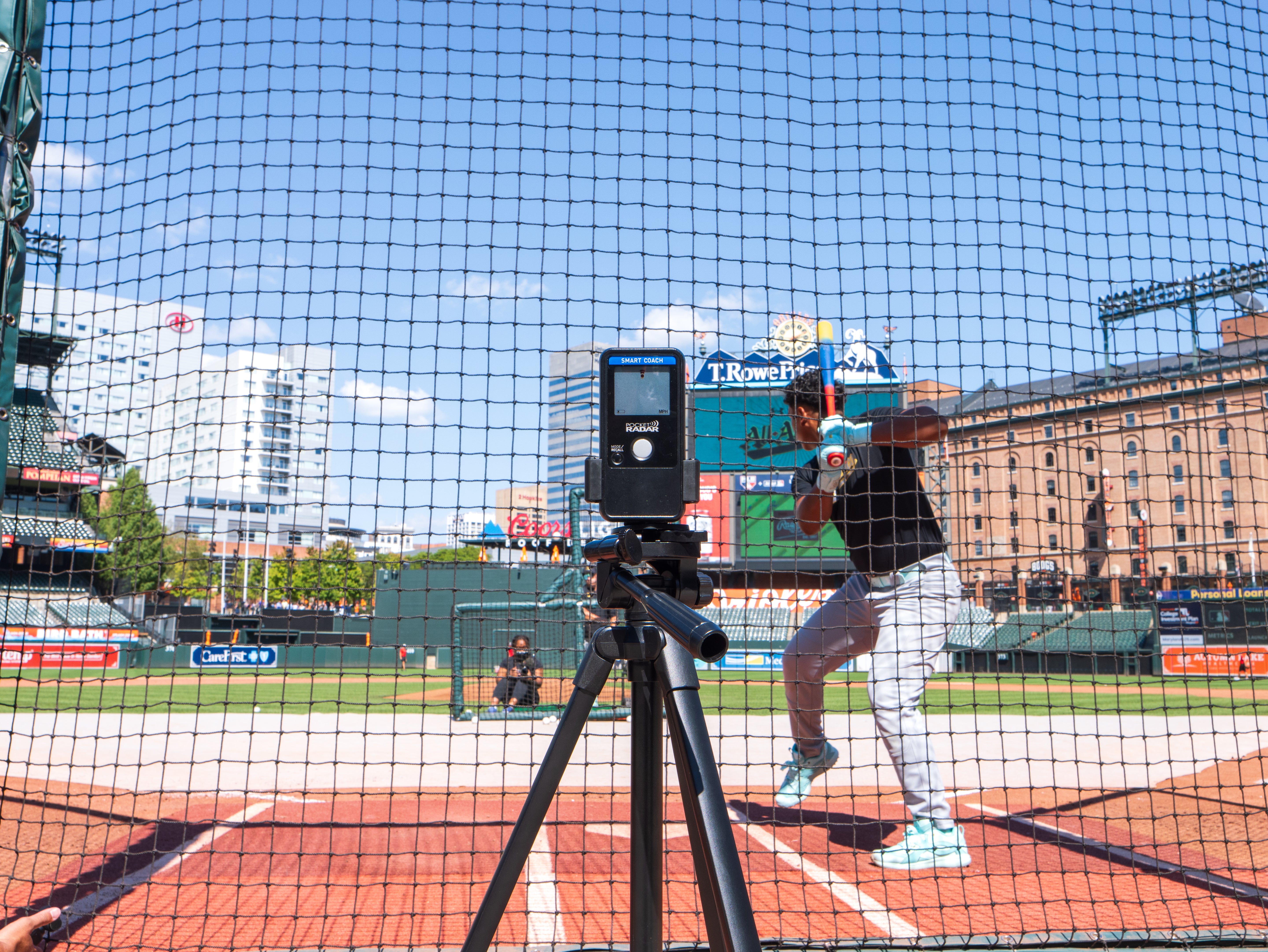
- Gather all necessary hardware: Smart Coach device, Apple smartphone/tablet, tripod, universal mount, and optional battery pack.
- This set up is intended for cages and outdoor usage. Ensure balls travel at least 30 feet to be registered accurately.
- Position your setup 10 feet behind home plate, about 4 feet high, and as centered as possible.
- Make sure your device is not obstructed by netting or fencing and has a clear line of sight.
- Only use with tee work, soft toss, or front toss for hardware safety.
- Use the visual bullseye to confirm calibration.
- Use the Audio Feedback feature in App Settings to hear your results either as a beep or readout. For fast-paced training use the beep function.
✅ Step 3: Minimize Distractions with Fitness Focus
- Create a custom Fitness Focus in iPhone settings to block interruptions during sessions.
- This ensures uninterrupted data capture and performance analysis.
- Important: set up steps may vary depending on iOS device and operating system.
✅ Step 4: Troubleshoot Smartly
- Avoid tilting the phone during calibration—restart if calibration is corrupted.
- Ensure balls travel at least 30 feet to be registered accurately.
- Prevent device movement during sessions; if bumped, recalibrate.
- Use the speed filter to reduce interference from nearby activity.
- Slow down. Make sure batter waits until measurement (audio or visual) has been completed before next swing. Refer to Audio Feedback feature in Step 2.
✅ Step 5: Share Your Video Feedback
- Please submit videos captured during use and any relevant feedback via the Sports App: Open App > More > Early Access Program > Learn How To Upload Your Videos.